A comfortable monitor setup is less about finding one perfect measurement and more about arranging the screen so you can read it clearly without repeatedly leaning, twisting, or tilting your head. OSHA notes that workstation setup should be adjustable because there is no single arrangement that fits everyone.
1. Start with the screen directly in front of you
For a primary monitor, begin with the screen in front of your usual working position. This reduces the need to keep your head and neck turned to one side. If you use two monitors equally, place them close together and arrange them so frequent viewing does not require large repeated head movements.
2. Set a comfortable screen height
OSHA recommends placing the top of the monitor at or slightly below eye level for most users. The goal is to view the screen without repeatedly bending the neck forward or tilting the head back. People who use bifocals or similar lenses may need a different screen height, so comfort and clear viewing matter more than copying a fixed setup.
3. Adjust viewing distance for readability
OSHA describes a preferred viewing distance of roughly 20 to 40 inches (50 to 100 cm) for many desktop setups. Treat that as a practical range rather than a personal prescription: text should be readable while your head, torso, and back remain comfortably supported. Increasing text size can be more useful than leaning toward the screen.
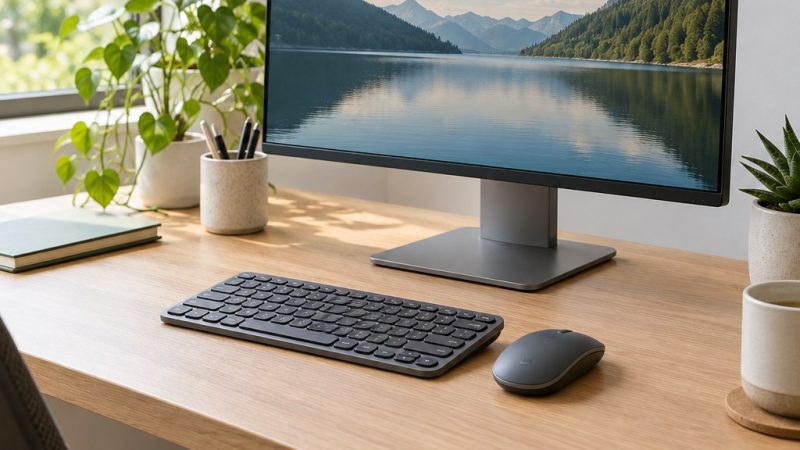
4. Coordinate the monitor with keyboard and mouse
- Monitor: keep the main screen in front and at a readable height and distance.
- Keyboard: position it in front of you so shoulders can stay relaxed and wrists can remain relatively straight.
- Mouse: keep it close enough that you do not repeatedly reach away from your body.
- Chair and feet: adjust the chair so your back and feet are supported rather than changing one component in isolation.
5. Control glare before changing your posture
If reflections make the screen difficult to see, first try changing the monitor angle, room lighting, blinds, or screen position. OSHA suggests placing the monitor perpendicular to windows when practical. The aim is to improve visibility without forcing yourself into an awkward viewing position.
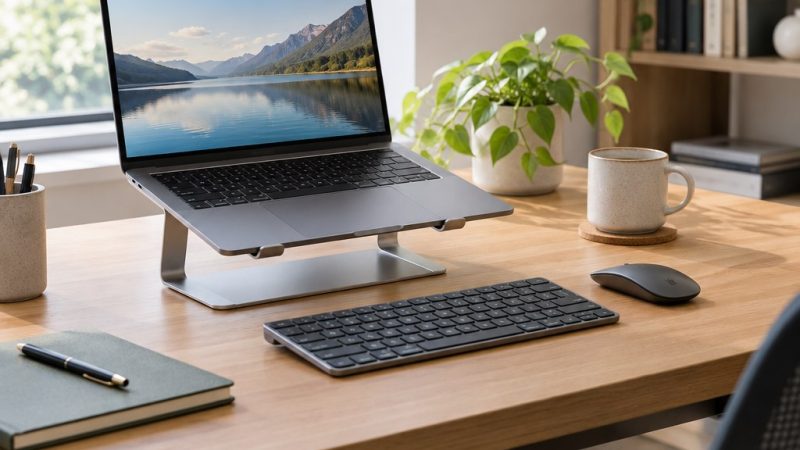
6. Laptop setups need a compromise
A laptop connects the screen and keyboard, so raising the display also raises the keyboard. For longer desk sessions, OSHA’s workstation checklist recommends applying desktop ergonomic principles and using a separate keyboard and input device when a laptop is the primary computer. For shorter sessions, change position regularly and avoid treating a temporary setup as a fixed posture you must hold.
7. Quick setup comparison
| What you notice | First thing to check | Practical adjustment |
|---|---|---|
| You keep leaning forward | Text size and viewing distance | Increase text size or adjust screen distance |
| You tilt your head back | Monitor height | Lower the display if appropriate |
| You turn your head repeatedly | Screen position | Move the primary display more directly in front |
| You reach for the mouse | Input-device position | Bring the mouse closer to the keyboard |
8. Do not chase one perfect posture
Even a well-arranged workstation should not lock you into one position all day. OSHA recommends changing working position frequently, and NIOSH notes that short breaks can help reduce discomfort during computer work. Small chair adjustments, standing for some tasks, looking away from the screen, and brief walking breaks can all add variety to a desk-based day.
9. Quick knowledge check
3-question check
How well do you know the setup basics?
10. Final checklist
- Primary screen is positioned in front of your usual working position
- Top of screen is around eye level or slightly below, adjusted for your needs
- Text is readable without leaning toward the display
- Keyboard and mouse are within comfortable reach
- Glare is managed through screen or room adjustments
- Your routine includes position changes rather than one fixed posture
11. Final thoughts
A useful monitor setup is adjustable, readable, and compatible with the rest of your workstation. Start with screen position and readability, then coordinate the keyboard, mouse, chair, and lighting. For the broader routine, see Vendixia’s complete desk wellness guide.
Sources and editorial note
This guide was developed using public computer-workstation guidance from the U.S. Occupational Safety and Health Administration (OSHA) and office-environment guidance from the National Institute for Occupational Safety and Health (NIOSH). It is general educational information, not individualized medical advice.