
A comfortable desk setup is not about finding one perfect posture and holding it all day. A better goal is to arrange your workspace so common tasks feel natural, reduce unnecessary reaching and awkward positions, and make it easy to change position regularly.
1. Start with four practical priorities
- Support: adjust the chair so your back and feet feel supported.
- Reach: keep the keyboard, mouse and frequently used items close enough that you do not repeatedly reach forward or sideways.
- View: place the main screen in front of you at a comfortable distance and height.
- Variation: change position during the day instead of treating any posture as something to hold indefinitely.
2. Build the workstation from the chair outward
Chair and feet
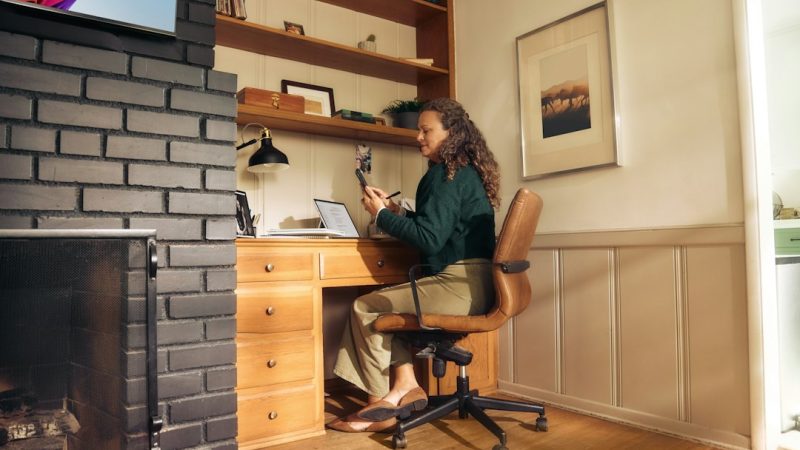
Use the chair’s adjustments to support your back and let your feet rest firmly on the floor or on a footrest when needed. The goal is a supported position that you can vary, not a rigid pose.
Monitor
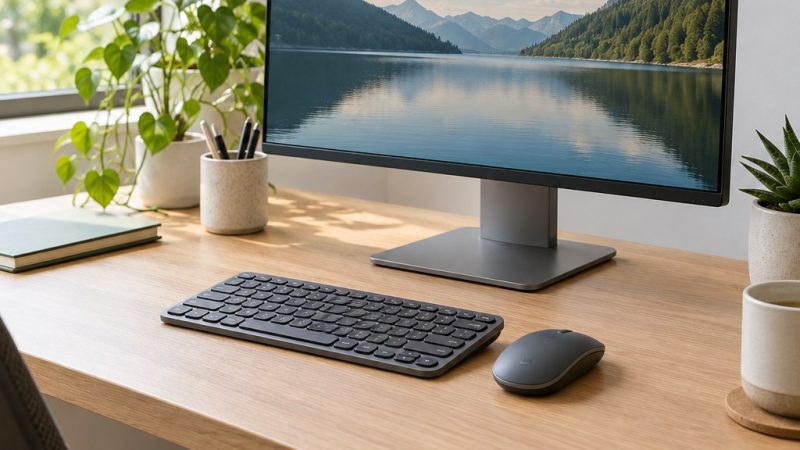
Keep the main monitor directly in front of you. OSHA’s computer-workstation guidance suggests a comfortable viewing distance and places the top of the screen at or below eye level; text should be large enough that you do not need to lean forward to read it. For a focused walkthrough, see our monitor height and viewing-distance setup guide.
Keyboard and mouse
Place the keyboard directly in front of you and keep the mouse nearby. Aim for relaxed shoulders, elbows close to the body, and wrists roughly straight rather than bent up, down or sideways. For a focused walkthrough, see our keyboard and mouse placement guide.
3. Quick workstation comparison
| Area | A useful starting point | Common sign to re-check |
|---|---|---|
| Monitor | In front of you, comfortable to read | You repeatedly lean forward or tilt your head |
| Keyboard | Close enough for relaxed shoulders and elbows | Your wrists stay bent while typing |
| Mouse | Near the keyboard and easy to reach | Your arm repeatedly reaches away from your body |
| Chair | Back and feet supported | You cannot sit comfortably without perching or twisting |
4. Real-life desk scenarios
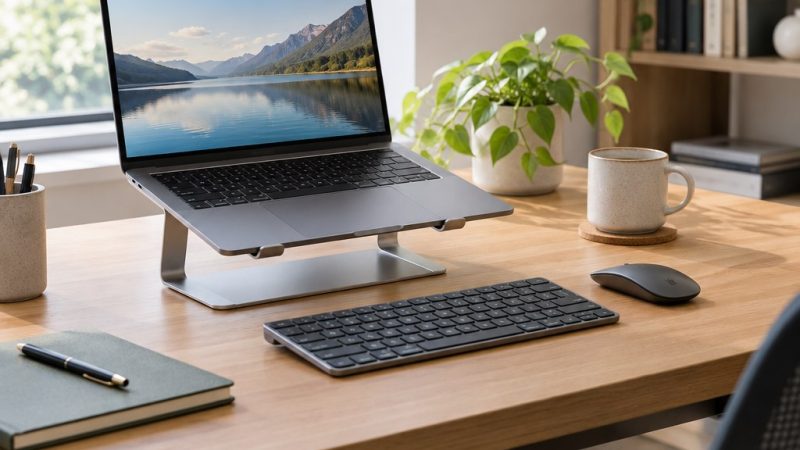
- Laptop-only setupIf the laptop is your main computer for long sessions, separating the screen from the keyboard with an external keyboard or monitor can make adjustment easier. See our practical laptop desk setup guide for the full walkthrough.
- Small deskPrioritize the items you use most. Keeping the mouse and keyboard close may matter more than filling the desk with accessories.
- Shared workspaceRe-adjust the chair, screen and input devices when another person has used the station rather than assuming the previous setup fits you.
- Long focus sessionsUse natural transitions—calls, refilling water, finishing a task—as cues to stand, walk briefly or change working position.
5. A simple desk-fit checklist
- Main screen is in front of you
- Text is readable without leaning forward
- Shoulders can stay relaxed
- Keyboard and mouse are within easy reach
- Wrists can remain roughly straight
- Back and feet have support
- Frequently used items do not require repeated reaching
- Your setup makes changing position easy
6. Movement belongs in the setup
Even a well-adjusted workstation does not make staying still for a long time ideal. OSHA recommends changing working position frequently and periodically standing or walking. Rather than chasing a rigid timer, build movement into the workday in ways you can repeat consistently.
- Change sitting position when you notice yourself becoming stiff or uncomfortable.
- Stand or walk briefly between tasks when practical.
- Use some phone calls, reading or meetings as opportunities to change position when the task allows.
- Keep frequently used objects arranged so routine work does not require awkward reaching.
7. Quick knowledge check
3-question check
How well do you know the desk-wellness basics?
8. Final thoughts
The most useful desk setup is adjustable, comfortable and realistic for your space. Start with support, viewing position and easy reach, then keep changing position during the day. If you have persistent pain, numbness, weakness or another health concern, workstation adjustments are not a substitute for advice from a qualified health professional.
Sources and editorial note
This guide was developed using the U.S. Occupational Safety and Health Administration (OSHA) Computer Workstations eTool, including its guidance on neutral working positions, monitors, keyboards, pointing devices, chairs and desks. Vendixia does not claim hands-on product testing unless an article explicitly says so.