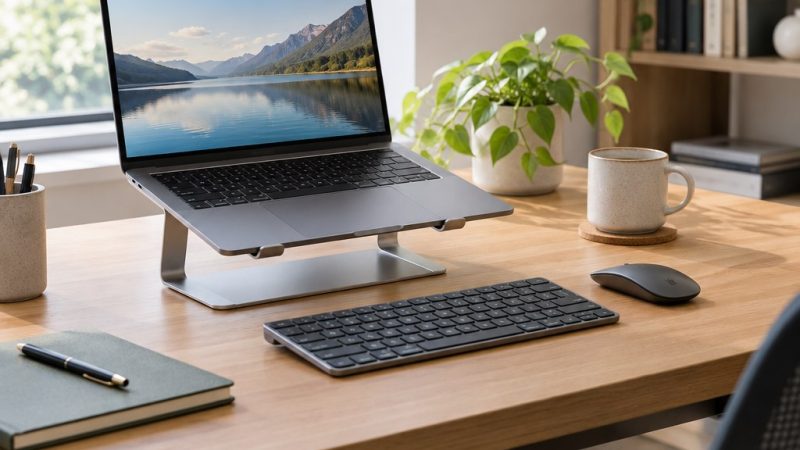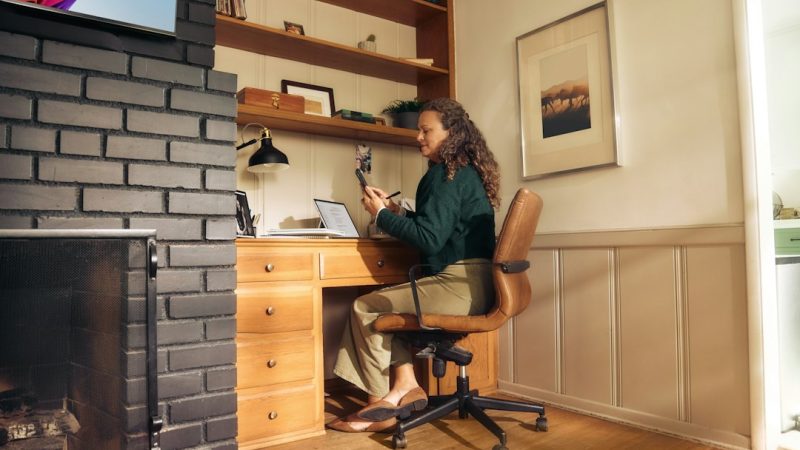
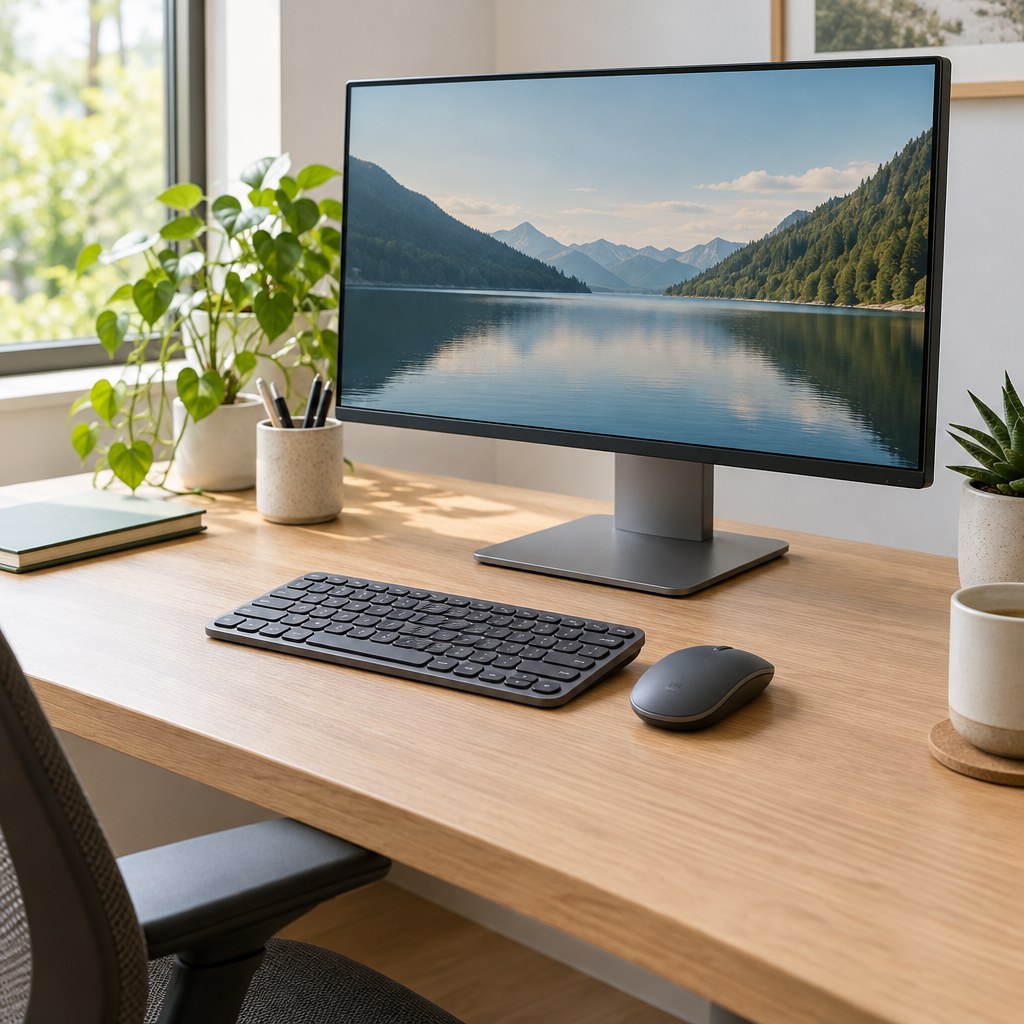
A comfortable keyboard and mouse setup is less about buying a special accessory and more about arranging the devices you already use so routine work does not require repeated reaching or awkward wrist positions. OSHA’s computer-workstation guidance emphasizes adjustability because there is no single arrangement that fits everyone.
1. Start with the keyboard directly in front of you
Place the keyboard in front of your usual working position. A useful starting point is a distance that lets your elbows stay close to your body and your shoulders remain relaxed. Avoid pushing the keyboard so far away that you need to lean forward to type.
2. Aim for a neutral wrist position
OSHA recommends arranging the keyboard so the wrists stay straight and generally in line with the forearms. A keyboard that is too high, too low or steeply tilted can encourage wrist or shoulder positions that feel awkward over time. Adjust the chair, work surface or keyboard tray when available rather than forcing your hands to adapt to a fixed setup.
3. Keep the mouse close to the keyboard
The mouse or other pointing device should be easy to reach without repeatedly moving the arm away from the body. If the mouse sits far to the side because the keyboard or tray uses all the available space, reorganize the work surface so both input devices fit within comfortable reach.
4. Coordinate keyboard, mouse and chair
- Keyboard: directly in front and close enough for relaxed shoulders.
- Mouse: beside the keyboard rather than far across the desk.
- Wrists: roughly straight instead of continually bent up, down or sideways.
- Chair: adjusted so your back and feet are supported while your arms can reach the work surface comfortably.
5. Common setup problems and first adjustments
| What you notice | What to check | Practical first adjustment |
|---|---|---|
| You lean toward the keyboard | Keyboard distance | Bring the keyboard closer if desk space allows |
| You repeatedly reach for the mouse | Mouse position | Move it beside the keyboard |
| Your shoulders rise while typing | Keyboard or work-surface height | Review chair and keyboard height together |
| Your wrists stay sharply angled | Keyboard height and tilt | Adjust the setup toward a straighter wrist position |
6. Small desks and laptop setups
Limited desk depth can make good placement harder. Prioritize the keyboard and pointing device you use most, and keep them within easy reach. If a laptop is your primary computer for longer sessions, a separate keyboard and input device can make it easier to adjust the screen and hands independently.
7. Do not treat one position as permanent
Even a well-arranged workstation should allow variation. Change position during the day and use natural transitions between tasks as opportunities to stand or move briefly. For the broader workstation routine, see Vendixia’s desk wellness guide. If screen placement is also a problem, use our monitor height and viewing-distance guide.
8. Quick knowledge check
3-question check
How well do you know the input-device basics?
9. Final checklist
- Keyboard is directly in front of your usual position
- Shoulders can stay relaxed while typing
- Elbows can remain reasonably close to the body
- Wrists are not forced into a steep angle
- Mouse is close to the keyboard
- Frequently used devices do not require repeated reaching
- The setup allows position changes during the day
10. Final thoughts
A practical keyboard and mouse setup should make ordinary computer tasks easy to reach and easy to adjust. Start with the keyboard in front, bring the mouse close, and coordinate both devices with the chair and work surface rather than changing one component in isolation.
Sources and editorial note
This guide was developed using public computer-workstation guidance from the U.S. Occupational Safety and Health Administration (OSHA), including its keyboard and workstation-component guidance. It is general educational information, not individualized medical advice.