Laptops are convenient because the screen and keyboard travel together. At a desk, that same design creates a tradeoff: raising the screen also raises the keyboard, while bringing the keyboard into an easy position usually lowers the screen. A practical setup works around that limitation rather than searching for one perfect position.
1. Understand the laptop tradeoff
For longer desk sessions, screen position and input-device position often need different adjustments. If your laptop stays flat on the desk, you may end up looking downward more than you would with a separate monitor. If you raise the entire laptop, the built-in keyboard can become awkward to reach.
That is why an external keyboard and mouse can be useful when a laptop is raised for longer desk work. For shorter or mobile sessions, a simpler setup may be more realistic.
2. Start with the screen
Place the laptop so the display is easy to see without repeatedly leaning toward it. Screen height, viewing distance, text size, glare and your vision all affect what feels workable. Our monitor height and distance guide explains these variables in more detail.
If the screen feels too small from a comfortable distance, increasing text or interface scaling may be a better first step than moving your face closer to the display.
3. If you raise the laptop, separate the input devices
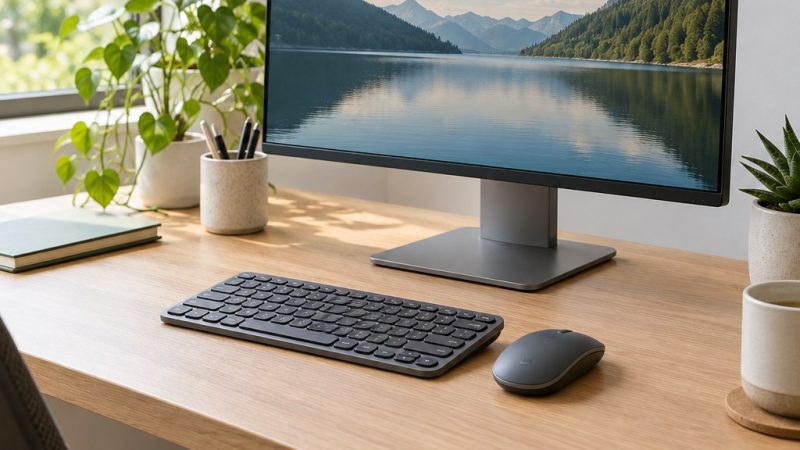
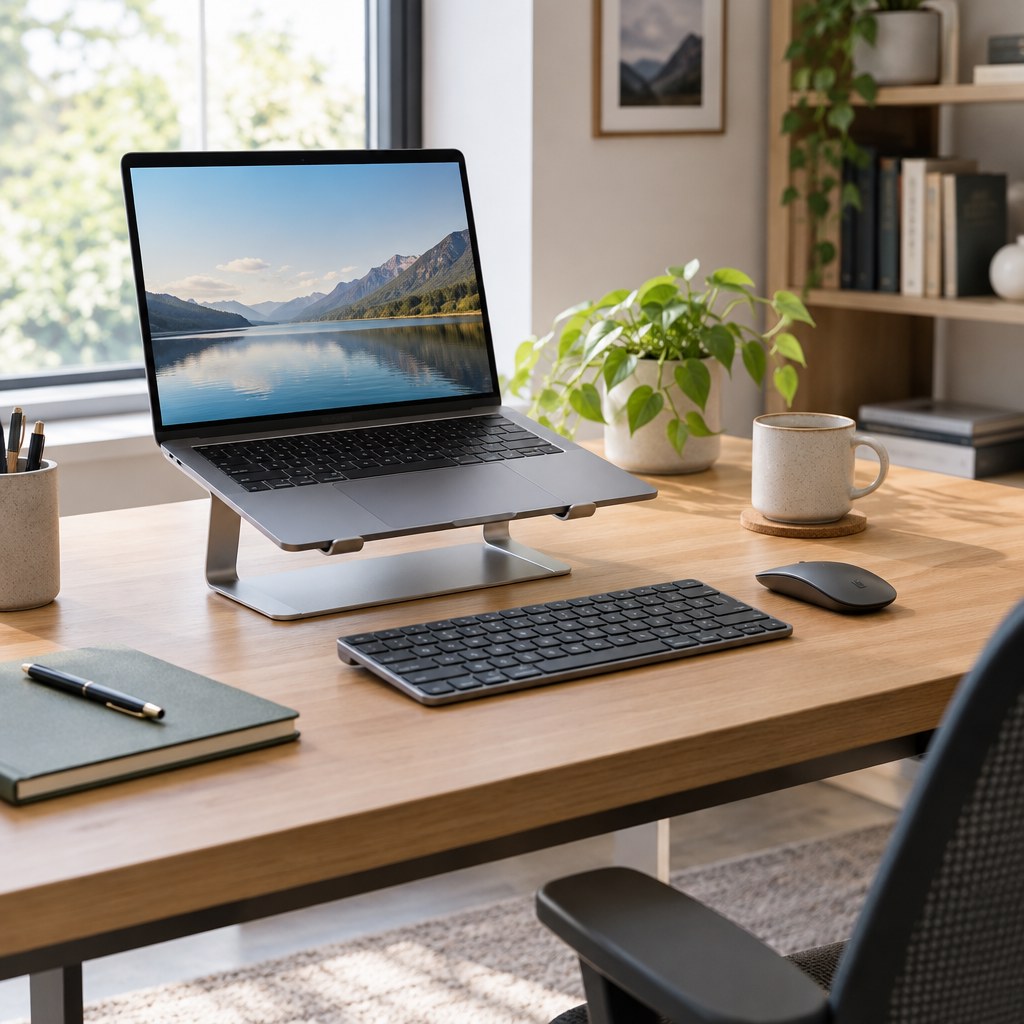
A stable laptop stand or riser can lift the screen, but using the built-in keyboard while it is elevated may force your arms into an uncomfortable position. A separate keyboard and pointing device let you position the screen and your hands more independently.
- Laptop: position the display for comfortable viewing.
- Keyboard: keep it in front of your usual working position and within easy reach.
- Mouse: keep it close beside the keyboard to reduce repeated reaching.
- Chair: adjust your sitting position before making small device changes.
See our keyboard and mouse placement guide for a more detailed input-device setup.
4. Small desk? Prioritize reach and stability
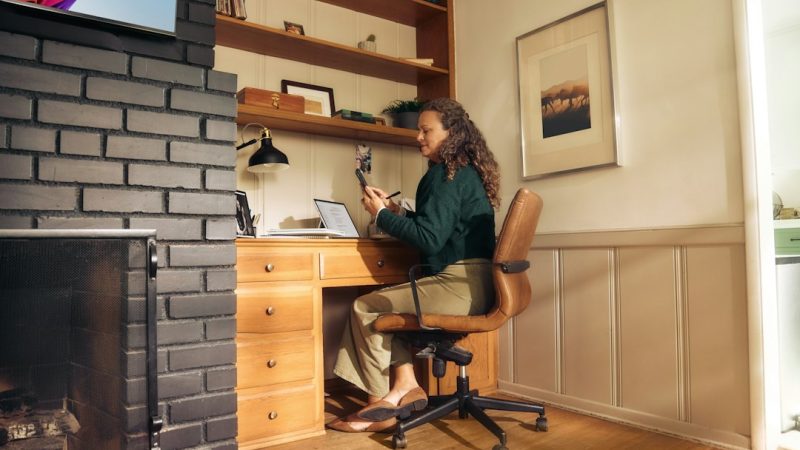
You do not need a large workstation to make useful changes. On a compact desk, prioritize a stable laptop position, enough room for your hands, and a mouse area that does not force you to reach far to the side. A compact external keyboard can free space when that fits your needs.
Avoid improvised stacks that wobble or make the laptop unstable. Whatever raises the computer should support it securely and should not block ventilation specified by the manufacturer.
5. External monitor option
If you regularly use an external monitor, decide which display is primary. Place the screen you use most often in front of your usual working position. If both displays are used equally, a more centered arrangement may make sense. The exact setup depends on how you divide work between the screens.
6. Build the setup in this order
- Choose your usual working position at the desk.
- Adjust the chair and desk relationship as far as your equipment allows.
- Place the main screen where it is comfortable to view.
- Adjust text size or display scaling if needed.
- Position the keyboard directly in front of your working position.
- Keep the mouse close to the keyboard.
- Check cables, ventilation and device stability.
- Change position and take brief movement opportunities during longer desk periods.
7. Common laptop setup problems
| Problem | Practical adjustment to consider |
|---|---|
| Screen feels too low | Raise it securely; for longer use, consider a separate keyboard and mouse |
| Text is hard to read | Try display scaling or larger text before leaning closer |
| Mouse is far to the side | Move it closer to the keyboard and clear unnecessary desk items |
| Laptop stand makes typing awkward | Use external input devices instead of reaching up to the built-in keyboard |
| Setup feels fine at first but tiring later | Include position changes and short movement breaks when practical |
8. Laptop-only setups can still be practical
Not every session needs a full workstation. If you cannot use external devices, focus on the basics: a stable surface, readable screen, manageable reach and regular changes of position. The best temporary setup is one you can actually use safely and consistently.
For the broader workstation framework, visit our Desk Wellness guide.
9. Quick knowledge check
3-question check
Can you build a more practical laptop setup?
10. Final thoughts
A laptop desk setup is a set of compromises, not a single measurement. Give the screen and input devices enough independence when you can, keep frequently used items within easy reach, make the display readable, and allow your position to change during the day.
Sources and editorial note
This article is based on general computer-workstation principles described in public U.S. Occupational Safety and Health Administration guidance. It provides general educational information rather than individualized medical or ergonomic advice.